 Sign In
Design, manage, and print professional ID cards online with IDpack. Access your projects from a modern web browser, wherever you work. IDpack supports 97 card printers.
Explore the technologies and features below and try the examples on your computer. If something does not work, contact us with your computer model, operating system, browser name, and browser version.
- Scalable Vector Graphics (SVG)
- WebP Image Format
- Photo ID Capture System
- 23 Supported 1D Barcode Types
- QR Code
- Contactless Card Reader (RFID)
- Two-Factor Authentication (2FA)
- ID Card Printing System
- 126 Badge Design Templates
- 132 Available Database Fields
Scalable Vector Graphics (SVG)
IDpack uses SVG technology to provide perfect printing quality using vectorial images. To know if your browser supports SVG technology, you will see a transparent SVG logo on your screen.
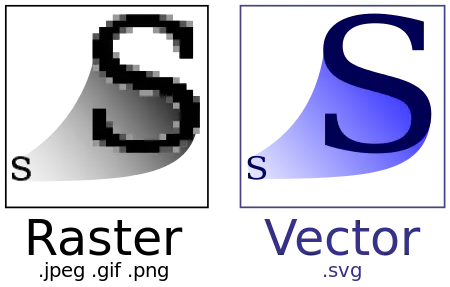
These icons illustrate the difference between bitmap and vector images. The bitmap image is made up of a fixed set of pixels, whereas the vector image is made up of a fixed set of shapes. Looking at the picture, we can see that increasing the size of the bitmap shows the pixels while increasing the size of the vector image keeps the shape intact. All IDpack templates are designed using SVG technology for the best resolution possible.
SVG Logo
WebP Image Format
IDpack uses WebP images to provide efficient image compression. WebP can produce smaller files at similar quality, or higher quality at a similar file size, compared with traditional image formats.
The image in the preview uses WebP. If it appears, your browser can display this format.
WebP Logo

Photo ID Capture System
Capture a Photo ID directly in your browser. Allow camera access when prompted, choose a camera, then click Capture Photo ID or the live camera image to take a picture.
IDpack supports webcam capture at resolutions up to 4K Ultra HD, depending on your camera and chosen plan.
The live feed and captured image remain in your browser. This test does not upload them. If the camera is unavailable, close other applications that may be using it and try again.
Photo ID Capture
Live camera

Saved Photo ID
1D Barcodes
IDpack supports [idc_testing output=barcodes] active 1D barcode types: [idc_testing output=barcode_names].
Choose a symbology and the database field to encode when adding a barcode to a badge design. See supported barcodes and their recommended usage.
Test barcode
CODE 128 · 12345
QR Code
IDpack offers badge templates with QR codes. With IDpack Checkpoint, a scanned badge can link to an online check of the card’s validity.
Scan the sample QR code with your phone to open the existing Checkpoint demonstration link.
Test QR code
Contactless Card Reader (RFID)
IDpack supports the OMNIKEY 5427CK Gen2 contactless card reader with Professional and Enterprise plans. The reader must use the IDpack configuration package.
Connect your configured reader, keep this page active, and scan a card. Its type and serial number will appear in the test panel.
Test OMNIKEY 5427CK
- Contactless type
- None
- Contactless serial number
- None
Two-Factor Authentication (2FA)
IDpack supports two-factor authentication to help protect user accounts with an additional layer of security.
When enabled, users enter their password and a six-digit verification code from an authenticator app, such as Microsoft Authenticator, Google Authenticator, or another compatible app.
2FA is included with Business, Professional, and Enterprise plans and can be enabled from the User Manager.
Authentication security

ID Card Printing System
IDpack uses PDF output for high-quality single-sided and double-sided badge printing. Open a sample PDF below and use your PDF viewer’s print command to test your printing setup.
If your browser does not display an embedded PDF, use the link to open it in another tab.
Single-sided print preview
Open the single-sided sample PDF ↗